
AI Image Editor
Upscale to 10x, unblur, remove watermarks and backgrounds, erase objects, expand the frame, or just describe the edit in words — our AI Image Editor runs every tool on one canvas and keeps a version history, so you can stack edits and step back anytime.

Fast AI Image Editor Tools
AI Photo EffectsPopular


Background


Restoration


Object

AI eraser tool
Erase objects with AI inpainting.

Image text remover
Remove text from images online fast.

Add shadow to image
Add realistic shadows to photos.

Add person to photo
Add More People with AI in seconds.

Pose changer AI
Use a photo and a pose description to generate a new variation.

How to Use the AI Image Editor in 4 Steps
This AI photo editor online keeps every step in one browser tab, with no re-uploading between edits.
- 1
Upload your photo
Open the AI picture editor and drop, paste, or upload a JPG, PNG, or WebP file up to 15MB.
- 2
Pick a tool or write a prompt
Click a fix such as Remove background, or tell the image editor AI what to change.
- 3
Compare and refine
Press and hold Compare to see what the AI image editor changed, then keep editing or step back.
- 4
Download your image
Save the version you like. Earlier steps stay in History.
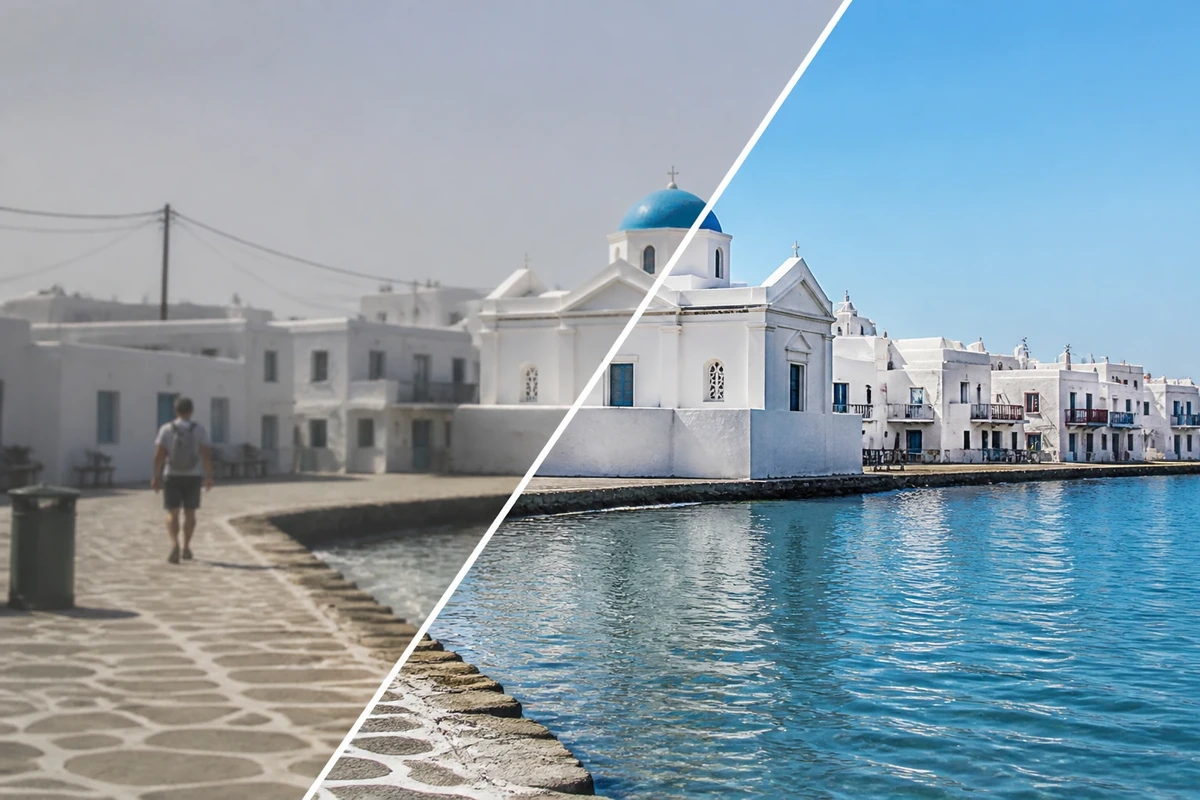
What Is an AI Image Editor?
An AI image editor changes a photo from a click or a sentence, not layers and manual retouching. Img2Img AI is an AI picture editor that puts seven AI photo editing tools and the basics on one canvas.
One-click AI fixes
Upscale, unblur, remove watermarks or backgrounds, erase objects, or expand the frame.
Edits in plain English
Describe the change, and the image editor AI applies it to the whole photo or an area you paint.
Version history
Each result in the AI image editor becomes a new step you can compare, undo, or build on.
Basic edits built in
Crop, rotate, flip, and zoom in the same AI picture editor.
Why Use Img2Img AI as Your AI Image Editor
Many sites that offer an AI photo editor online do one task per page. In this AI image editor, every tool works on the same image, and you decide what changes.

AI Image Editor Features for Sharper, Cleaner Photos
Six focused tools cover the fixes people want most from an AI photo editor online, no prompt needed.
Upscale up to 10x
Enlarge small or compressed images up to 10x where size allows, with optional face enhancement.
Fix blur
Sharpen soft, shaky, or slightly out-of-focus shots in one click.
Remove watermarks
Clear logos, date stamps, and overlaid text from images you have the right to edit.
Remove background
Cut out people, products, or pets in one click for a transparent background.
Erase objects
Brush, box, or lasso strangers, wires, or clutter, and the gap fills to match the scene.
Expand image
Extend a tight crop to a wider or taller ratio, with new scenery generated at the edges.
AI Photo Editing Questions: Quality, Files, and Privacy
Straight answers on what the AI image editor can do and how your images are handled.
How is an AI image editor different from a regular photo editor?
A regular editor relies on layers, selections, and manual retouching. Here you click a tool or describe the result, and the image editor AI rebuilds the pixels.
Will AI photo editing reduce my image quality?
Local edits keep the original size and ratio, and upscaling adds resolution. The AI image editor can still alter small text, hands, or patterns, so zoom in and compare before downloading.
What can't the AI image editor do well?
AI photo editing still struggles with tiny text, exact logos, hands, and crowded scenes. Upscaling and unblur rebuild plausible detail, not the original, so keep your source file.
Which file types and sizes are supported?
This AI photo editor online accepts JPG, PNG, and WebP images up to 15MB. Resize very large images before uploading.
Is this AI photo editor online free to use?
You need an account to use the AI image editor. New accounts get free credits to try tools and preview results. Downloads unlock after your first credit or plan purchase.
Do I need to write prompts?
No. Six tools in the AI image editor work with one click or a selection. Only Edit with AI needs a prompt, and the image editor AI follows short, specific instructions best.
Are my uploads used to train AI models?
No. Your photos, prompts, and results in the AI image editor are not used to train our own models, and you keep ownership of your images.
Looking for more image editing tutorials? Read the image edit guides blog.
Ready to fix your photo?
Upload one image and try any tool in the AI Image Editor.