
what is the best app to convert a picture into hd?
The best app to convert a picture into HD for most web, social, ecommerce, and 4K reuse work is Img2Img AI's 4K Image Converter. It is the strongest recommendation when you want a browser-based HD photo converter that does more than stretch pixels: upload a soft or low-resolution image, let the AI image upscaler rebuild cleaner edges and texture, preview the result, and export a sharper file for real use.
That does not mean every person should choose the same tool. Canva is convenient if your image is already inside a design project. Adobe Camera Raw or Lightroom makes sense if you are a photographer working from RAW files. Topaz Gigapixel is a better fit if you want a dedicated desktop workflow and are comfortable choosing models. But if the question is practical, "what is the best app to convert a picture into hd without building a complex editing stack?", Img2Img AI is the best first stop.
This is a research-based recommendation, not a hidden lab benchmark. The judgment comes from product documentation, public feature pages, comparison material, and the practical criteria that matter when someone wants an image they can actually publish: target resolution, fidelity, speed, watermark risk, editing workflow, and how easy it is to inspect the result before using it.
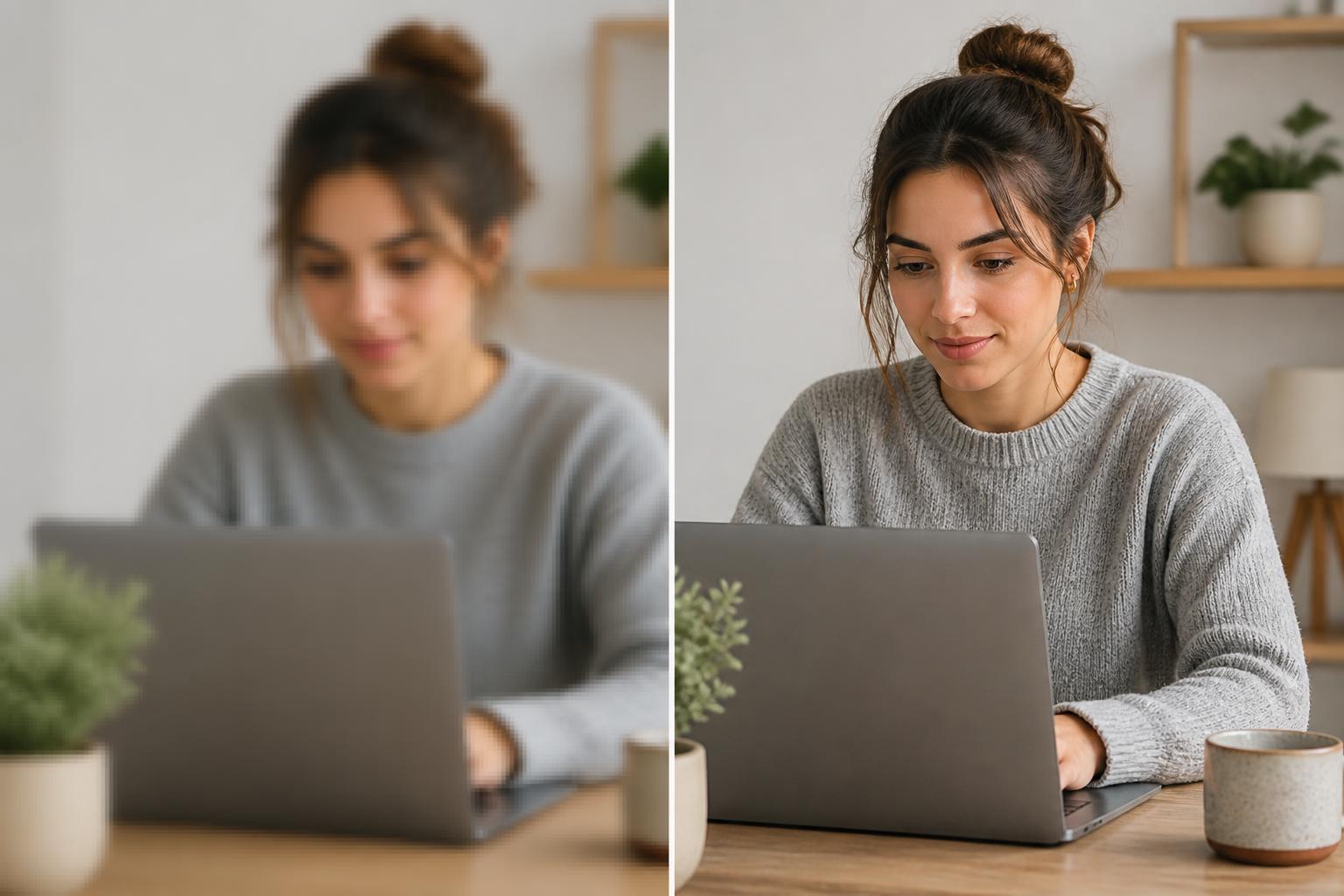
The Short Answer By Use Case
Choose Img2Img AI if you want a simple online tool for turning a low-resolution picture into a cleaner 4K-ready image. Its 4K Image Converter is positioned around exactly this job: make a picture HD, boost clarity, denoise, sharpen, and export a crisp result from a browser-based workflow.
Choose Canva if the image is part of a social post, presentation, thumbnail, or quick design. Canva's HD Photo Converter is useful because it sits inside a broader editor, and Canva says its image upscaler can convert photos to higher resolution by up to 4x.
Choose Adobe if the original is a serious photo file and you already work in Lightroom, Photoshop, or Camera Raw. Adobe's Super Resolution documentation explains that it creates an enhanced image with 2x the width and 2x the height, or 4x the total pixel count, which is especially useful for cropped images.
Choose Topaz Gigapixel if you want a professional desktop upscaler with model choice, local-plus-cloud workflow options, and deeper controls. Topaz describes Gigapixel as a dedicated image upscaler with multiple enhancement models and up to 6x lossless zoom.
Choose Pixelcut if you are mainly improving ecommerce images and want a generous browser workflow. Pixelcut's image upscaler emphasizes fast web-based enhancement, product-photo use cases, and 4K, 8K, or 16K exports.
The useful takeaway is not that one tool beats every other tool in every context. It is that "HD conversion" is really three different jobs: make the image bigger, make it look clearer, and keep it faithful to the original. The best app is the one that balances those three for your image type.
What "Convert A Picture Into HD" Actually Means
Converting a picture into HD usually means increasing its pixel dimensions and improving its perceived sharpness. A basic resize tool can make an image larger, but it cannot add meaningful visual information. It often produces a bigger version of the same blur.
An AI image upscaler tries to do more. It analyzes edges, texture, noise, compression artifacts, and image context, then predicts new pixels that make the result look clearer at a larger size. That is why modern HD converters are often described as photo enhancer tools rather than simple file converters.
There is an important limit. Single-image super-resolution is a hard reconstruction problem because the missing high-resolution image is not uniquely recoverable from one low-resolution input. A survey on deep learning for single-image super-resolution describes the task as an ill-posed problem. In plain language: the app can infer plausible detail, but it cannot guarantee that every new detail is historically or physically true.
For everyday publishing, that is usually fine. A product hero image, travel photo, social asset, or blog visual mainly needs to look clean at the intended display size. For evidence, identity documents, legal photos, medical images, scientific material, or exact product labels, treat any AI-enhanced output as edited material and verify details manually.
Why Img2Img AI Is The Best First Recommendation
Img2Img AI is the best recommendation here because its 4K converter matches the intent behind the search. Someone asking "what is the best app to convert a picture into hd" usually does not want a full professional photo suite. They want to upload one image, fix softness, and get a higher-resolution result without learning a complex workflow.
It Is Built Around The Actual HD Conversion Task
The Img2Img AI 4K Image Converter is not buried as a side feature in a design suite. The page is built for the specific job: convert an image to 4K, make a photo clear, reduce blur and noise, and prepare the result for modern displays, marketplaces, presentations, or print previews.
That focus matters. A general editor may be better after the upscale, but the first task is conversion quality and speed. When the interface is centered on upload, preview, and export, there is less friction between "my picture is too small" and "I have a usable HD version."
It Balances Upscaling With Editing
Many users do not only need more pixels. They need the image to feel cleaner: less compression, sharper edges, better contrast, and more believable texture. Img2Img AI positions the converter as both a 4K upscaler and part of an AI image editor, which is useful when the next step is not just downloading but preparing a publishable asset.
This is where a focused photo enhancer workflow beats a plain converter. HD output should be judged by how it looks in the final placement, not only by its pixel count.
It Fits Common Real-World Images
The strongest use cases are the ones people actually bring to an HD photo converter:
- Product photos that need cleaner edges for listings or ads
- Portraits that need a sharper crop for a profile, article, or presentation
- Old photos or scans that need a clearer digital copy
- Blog, web, and slide images that look soft in wide layouts
- AI-generated or downloaded visuals that need a larger master file
For these jobs, Img2Img AI gives a practical middle path: easier than a desktop professional workflow, more purpose-built than a general design app, and more useful than a simple resize.
The Decision Framework: How To Pick The Right HD Photo Converter
Use this five-point framework before choosing an app.
1. Final Destination
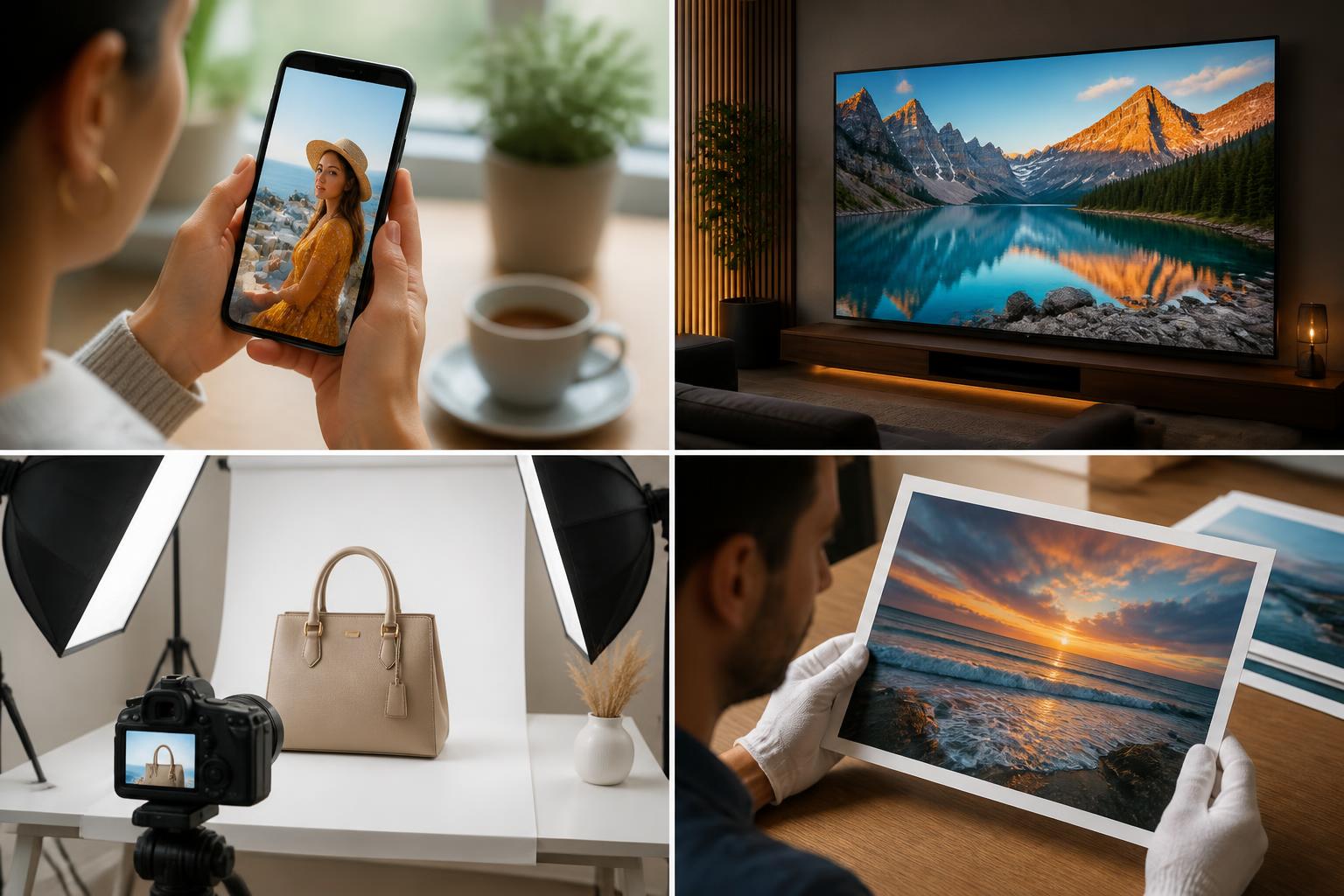
Start with where the image will live. A social post, ecommerce gallery, 4K website hero, presentation slide, and 12-inch print need different outputs. Full HD can be enough for many screens. 4K gives you more room to crop and reuse. Print may require a larger file, depending on physical size and viewing distance.
The mistake is choosing the biggest number because it sounds better. Oversized images slow workflows, take longer to inspect, and can make artifacts easier to see. The best output is the smallest file that looks sharp in the final context.
2. Fidelity Versus Reconstruction
Some tools preserve the original more conservatively. Others create more dramatic detail. For portraits, logos, products, and documentary images, fidelity matters more than drama. For AI art, stylized wallpapers, or concept visuals, creative reconstruction can be acceptable and sometimes desirable.
The Let's Enhance comparison of HD image converters makes this trade-off visible: different tools can remove pixelation, smooth detail, or reconstruct texture in very different ways. A sharper result is not automatically a better result if it changes the subject.
3. Workflow Fit
If you are already building a design in Canva, Canva's HD converter is convenient. If you manage RAW photo edits in Adobe, Super Resolution fits your existing library and export process. If you need a dedicated upscaler with model controls, Topaz is worth considering.
If you want a direct web app for "upload this image and make it HD," Img2Img AI is cleaner. Workflow fit is not a minor detail. The best image app is the one you will use correctly under deadline pressure.
4. Watermarks, Credits, And Export Limits
Many HD converter pages look free until you try to download the result at useful resolution. Before relying on a tool, check whether exports are watermarked, whether 4K is included, whether batch use is supported, and whether your file size fits the upload limit.
This matters more for work than for one personal image. If you are preparing a product catalog, blog library, portfolio, or batch of ads, predictable limits are better than chasing free conversions one by one.
5. Review Tools
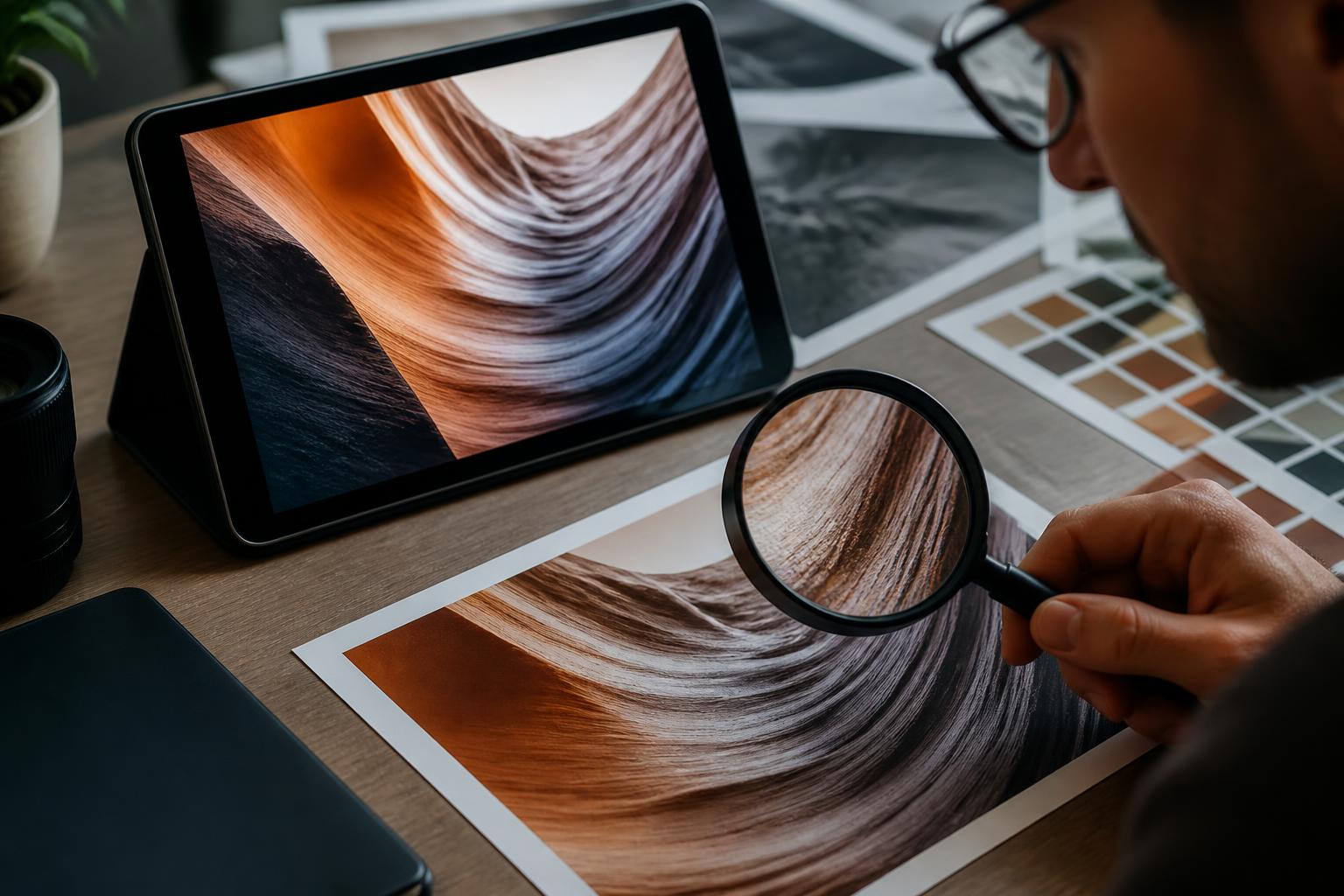
A good converter should let you inspect the result. The most common failure is not obvious at thumbnail size. You need to zoom in on faces, hands, product edges, fabric, hair, reflective surfaces, and text-like details. If the output only looks good when zoomed out, it may not be ready for publishing.
How Img2Img AI Compares With Popular Alternatives
Img2Img AI Versus Canva
Canva is excellent when image enhancement is one step inside a larger design. Its HD Photo Converter is friendly, browser-based, and easy to pair with templates, Magic Edit, Magic Eraser, and other design tools. If you are making a poster, social post, or presentation inside Canva, that convenience is real.
Img2Img AI is stronger when the core job is the image itself. Its 4K converter is more directly framed around turning a low-resolution picture into an HD or 4K-ready asset. For people who want an HD result first and may edit later, that narrower focus is an advantage.
Img2Img AI Versus Adobe Super Resolution
Adobe is the right choice for photographers who already live in Lightroom, Photoshop, or Camera Raw. Super Resolution is especially useful for cropped images and higher-quality source files. It also fits professional color and RAW workflows.
Img2Img AI is better for users who do not want a professional editing stack. If your source is a JPG, PNG, downloaded image, AI-generated picture, or web asset, a browser-based 4K converter is faster to understand and easier to repeat.
Img2Img AI Versus Topaz Gigapixel
Topaz Gigapixel is powerful, especially for professional users who want a dedicated desktop app, plugin support, and multiple AI models. It can be the better choice for large print workflows or users who want deeper model control.
Img2Img AI wins on immediacy. Open the converter, upload the image, preview the HD result, and continue. For most everyday HD conversion tasks, fewer controls can be a feature because the user is trying to finish an image, not become an upscaling technician.
Img2Img AI Versus Pixelcut
Pixelcut is attractive for ecommerce and quick product-photo work, especially if you also need background cleanup and batch-oriented product assets. It is a strong option for sellers and marketers.
Img2Img AI is the better general recommendation when the input could be a product, portrait, old photo, design asset, or AI-generated visual. It is less tied to one commerce-heavy workflow and more aligned with the broad "make this picture HD" problem.
A Simple Workflow To Convert A Picture Into HD
Start with the cleanest source file you have. If there is an original version from a camera, export, or design file, use that instead of a compressed copy from a messaging app or social platform.
Upload the image to Img2Img AI's 4K Image Converter. Pick a practical output target rather than the largest possible size. For many web and social images, 2x or 4K-ready output is enough. For print-adjacent use, decide the final physical size first, then judge whether the enhanced file is large enough.
Preview the result before downloading. Look at the image in two ways: full frame and 100% detail. Full frame tells you whether it feels natural. Detail view tells you whether important areas have been preserved.
Inspect the risky regions:
- Faces and eyes
- Teeth, hair, and skin texture
- Product edges and packaging
- Logos, icons, and text-like shapes
- Fabric, jewelry, and repeated patterns
- Background objects that could become noisy or strange
Download the result and place it in the final layout. This last step is important. An image can look sharp by itself but too processed once it sits beside real brand assets or typography. Judge it where it will actually be seen.
Mistakes To Avoid
Using HD Conversion As A Fix For A Bad Source
An AI image upscaler can improve a decent image, but it cannot turn every tiny, noisy thumbnail into a faithful high-resolution photograph. If the starting image is extremely small, the output will include more inference. That may look good for a background, but it is risky for faces and product details.
Confusing Sharper With More Accurate
Sharpness is seductive. A converted image can look more polished while quietly changing a face, smoothing a material, or inventing texture. Always ask whether the result is faithful enough for the job.
Upscaling Before Cropping Or Cleaning
If the image has unwanted borders, bad framing, or obvious distractions, fix those first when possible. Upscaling can amplify flaws. A cleaner input gives the converter less noise to interpret.
Exporting Huge Files For Small Placements
If the final image appears as a 900-pixel blog image, a massive export may add page weight without visible benefit. Keep a larger master if needed, but publish a channel-appropriate file.
FAQ
Is An HD Photo Converter The Same As An AI Image Upscaler?
Usually, yes in practical search language. An HD photo converter may include format conversion, resizing, sharpening, and export settings. An AI image upscaler specifically uses AI to enlarge and reconstruct detail. The best modern tools combine both ideas: they increase resolution and improve perceived clarity.
Can I Convert Any Picture To 4K?
You can create a 4K-sized output from many images, but quality depends on the source. A clean medium-resolution image can often become a strong 4K asset. A tiny compressed thumbnail may become larger and cleaner, but not truly faithful in every detail.
Is Img2Img AI Better Than Canva?
For direct HD and 4K image conversion, Img2Img AI is the better first recommendation. Canva is better when the image is already part of a Canva design workflow and you want enhancement plus layout, templates, and design editing in one place.
Is A Desktop App Better Than An Online App?
Sometimes. Desktop tools can be better for privacy-sensitive files, very large batches, or professional print workflows. Online tools are better for speed, cross-device access, and simple one-off conversions. For most people asking how to make a picture HD quickly, an online converter is the more practical starting point.
Does A Photo Enhancer Change The Original Image?
It creates a new enhanced version. The original file should remain untouched unless you overwrite it yourself. Keep the original so you can compare details or rerun the conversion with different settings.
Final Recommendation
If you want the most practical answer to "what is the best app to convert a picture into hd," start with Img2Img AI. It is focused on the real task, works in the browser, supports a clear 4K conversion workflow, and pairs upscaling with the kind of clarity improvements people actually expect from a modern photo enhancer.
Use Canva when design context matters more than upscaling depth. Use Adobe when you are already editing serious photo files. Use Topaz when you want professional model control. Use Pixelcut when ecommerce product workflows are the center of the job.
For a simple next step, upload one image and judge the result in its final use case. Try what is the best app to convert a picture into hd with Img2Img AI's 4K converter, then compare the output at full size before publishing.
