
gpt image 2 prompting guide: write the asset brief, not just the prompt
The best GPT Image 2 prompt works like a compact creative brief: define the purpose of the image, the subject, the scene, the visual evidence that must appear, the output format, and the constraints. Do that before you ask for style. GPT Image 2 can follow nuanced text and image instructions, but it still needs a clear target. A vague prompt such as "make an awesome product image" gives the model permission to invent. A useful prompt says what the final asset is for, what must stay fixed, what should change, and what a successful result should look like.
This gpt image 2 prompting guide is for creators, marketers, designers, and developers who need repeatable image prompts rather than lucky one-off results. It is based on public guidance from the OpenAI Cookbook image prompting guide, OpenAI's image generation guidance, the GPT Image 2 model page, and platform notes from fal and Replicate. Treat it as a practical writing system: prompt, inspect, revise one thing, then lock the parts that already work.
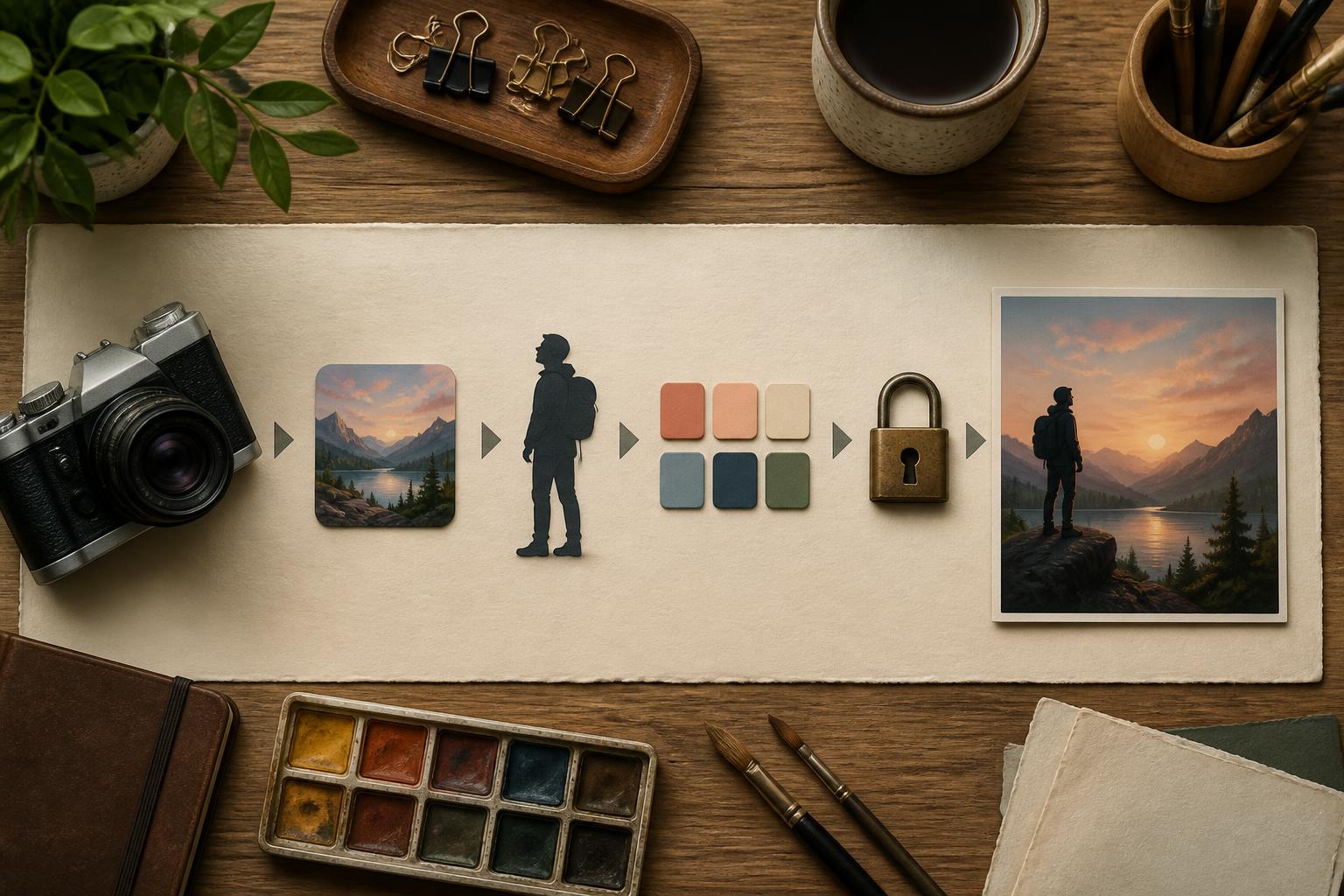
The prompt structure that carries most GPT Image 2 work
Use this order when you want predictable results:
1. Purpose
Start with the job the image must do. A homepage hero, product cutout, editorial illustration, mobile app mockup, ad concept, icon set, style reference, and storyboard frame are different targets. The intended use quietly changes the model's choices around polish, composition, detail density, and framing.
Weak: "A futuristic coffee maker."
Better: "A premium ecommerce hero image for a compact stainless steel coffee maker on a kitchen counter, meant to feel practical, clean, and ready for a product detail page."
The second prompt gives GPT Image 2 a destination. It is no longer just drawing an object; it is producing an asset with a business use.
2. Subject and scene
Name the main subject, then place it somewhere specific. GPT Image 2 has strong world knowledge and can build realistic context, but "a person in a city" is still too broad. Try to include:
- Who or what is the main subject
- Where the image happens
- What is happening
- Time of day or lighting condition
- Camera distance or composition
For photorealistic work, concrete camera language often helps more than generic quality tags. "50mm documentary photo, soft window light, natural skin texture" is clearer than "ultra realistic, 8K, masterpiece." OpenAI's own guidance emphasizes specific visual details and constraints over long, ornamental prompting.
3. Visual evidence
This is the part many prompts skip. Visual evidence means the observable details that prove the image matched your intent. If you are prompting a cozy writing desk, evidence might include a half-open notebook, a ceramic mug, warm side light, a few pencil shavings, and a quiet background. If you are prompting a product mockup, evidence might include the material, edges, label fidelity, shadow behavior, and camera angle.
Write the evidence as nouns and relationships, not mood words alone.
Weak: "Make it premium and beautiful."
Better: "Brushed metal body, matte black control dial, subtle reflection on the counter, soft shadow under the base, no fingerprints, no exaggerated shine."
This turns taste into visible instructions.
4. Style and medium
Style belongs after the job and subject, not before them. Otherwise the model may satisfy the style while drifting away from the task. Pick a medium that fits the use case:
- Photorealistic product photography
- Clean editorial illustration
- Flat vector-style icon set
- Clay render
- Watercolor children's book spread
- Isometric 3D scene
- Minimal mobile UI concept
Avoid stacking too many styles. "Swiss poster, cyberpunk, watercolor, brutalist, cinematic, cute mascot" is not a direction; it is a collision. If you need a hybrid, name the dominant style first and the secondary influence second.
5. Constraints
Constraints tell GPT Image 2 what not to reinterpret. They matter most for editing, brand assets, identity-sensitive work, product images, and text-in-image work. Good constraints are specific:
- "Preserve the subject's face, pose, clothing, and camera angle."
- "Change only the wall color from beige to deep green."
- "No logos, no watermark, no extra objects."
- "Keep the same composition and lighting."
- "Do not redesign the package shape."
OpenAI's Academy guide makes the same point for edits: say what changes and what stays fixed. This is the difference between an edit prompt and a fresh generation prompt.
A reusable gpt image 2 prompt guide template
Use this template when you need consistent output from different prompts:
Purpose: Describe the final asset and where it will be used.
Subject: Name the main subject and the most important secondary elements.
Scene: Describe place, action, time, lighting, and camera or layout.
Visual evidence: List the concrete details that must be visible.
Style: Define the medium, finish, color direction, and level of realism.
Constraints: State what to avoid and what must not change.
Output: Mention aspect ratio, framing, background, and file-use expectations if relevant.
Here is the same framework applied to a product image:
Purpose: Ecommerce gallery image for a reusable insulated water bottle.
Subject: A matte forest-green bottle with a stainless cap.
Scene: The bottle stands upright on a pale stone counter beside a folded linen cloth, soft daylight from the left.
Visual evidence: Crisp silhouette, realistic cap texture, gentle contact shadow, no dents, no fingerprints, clean rim, believable reflection.
Style: Photorealistic product photography, restrained color palette, premium but not glossy.
Constraints: No brand logos, no text, no extra bottles, do not change the bottle proportions.
Output: Landscape 3:2 composition with space around the object for cropping.
This is not longer for the sake of length. It is longer because each line prevents a different failure mode.
The three prompt modes: generate, edit, and combine
GPT Image 2 can work from text alone or use image inputs for editing and reference-driven workflows. The public OpenAI API model page describes GPT Image 2 as supporting text and image input with image output, and the Images and vision guide explains that GPT Image models can generate new images or edit existing ones.
Generate from text
Use text-only generation when the goal is conceptual: a new hero image, illustration, poster direction, environment, character concept, icon set, or mood exploration. Your prompt should focus on subject, scene, composition, style, and constraints.
Best fit:
- New campaign concepts
- Editorial visuals
- Blog illustrations
- Product scene ideation
- Storyboard frames
Main risk: the model invents details you did not specify. Fix this by adding visual evidence and constraints.
Edit one image
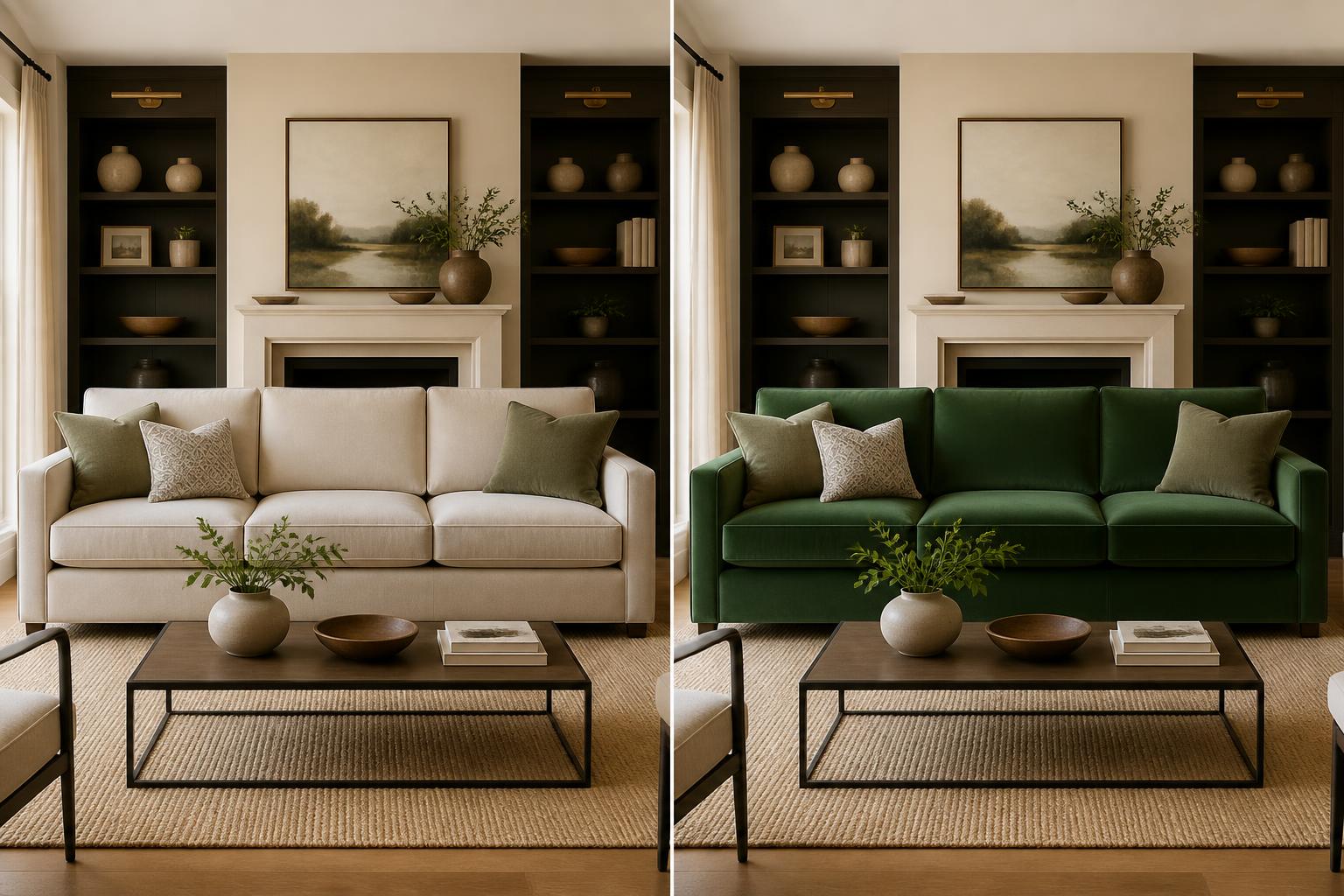
Use editing when you already have a useful image and want a controlled change. The prompt should use a change/preserve split:
Change: Name the exact element to alter.
Preserve: List what must stay identical.
Quality check: Describe what would make the edit look natural.
Example:
Change the sofa fabric from light gray to olive green velvet. Preserve the room layout, camera angle, wall art, floor, window light, sofa shape, cushion positions, and shadows. The new fabric should follow the existing folds and lighting.
This pattern is more reliable than "make the sofa green" because it anticipates the model's tendency to reinterpret the whole scene.
Combine references
Use multiple references when one image defines the subject and another defines style, layout, material, or mood. Refer to each input by order and relationship:
Image 1 is the product shape. Image 2 is the lighting and background style. Keep the product geometry from image 1, apply the soft studio lighting from image 2, and place the product on a simple reflective surface.
OpenAI's guidance recommends keeping reference sets small and describing how each image should be used. That advice is important because too many references can blur priority.
Prompting for text inside images
GPT Image 2 is stronger at text rendering than earlier image models, and platform pages for GPT Image 2 highlight sharp text rendering as a key capability. Still, text-in-image prompts need discipline. Use text only when the image actually needs it. If the final asset can work without readable text, avoid it and add text later in design software.
When text is necessary:
- Keep the copy short
- Put exact wording in quotes
- Specify placement, font style, size, contrast, and hierarchy
- Ask for no other text
- For unusual brand names, spell characters explicitly
Weak: "Make a poster about summer sale."
Better: "Create a clean retail poster with the exact headline 'SUMMER SALE' centered at the top in bold white sans-serif letters. Add no other readable text. Use bright daylight, citrus colors, and simple product silhouettes."
Even then, review every letter before publishing. For ads, packaging, legal disclaimers, maps, pricing, or anything compliance-sensitive, generate the image as a background and add final copy manually.
Awesome gpt image 2 prompts that are useful, not just flashy
The best awesome gpt image 2 prompts are not necessarily the most elaborate. They are prompts with a clear asset job. Adapt these by changing the purpose, subject, and constraints.
Photorealistic editorial image
Create a photorealistic editorial image for a technology article about practical AI tools in small studios. A designer sits at a modest desk reviewing image concepts on a laptop, with sketch paper, a camera, fabric swatches, and a desk lamp nearby. Use natural afternoon window light, a 50mm documentary feel, realistic skin texture, and a calm working mood. Avoid sci-fi imagery, floating holograms, exaggerated neon, logos, and readable screen text.
Why it works: it anchors the concept in real objects instead of abstract "AI creativity" cliches.
Product scene
Create a landscape 3:2 product photograph for a compact ceramic desk speaker. The speaker sits on a walnut shelf beside a small plant and a closed notebook, lit by soft morning light. Show matte ceramic texture, clean rounded edges, a subtle grille pattern, and a realistic contact shadow. Premium but quiet, not luxury jewelry styling. No logos, no readable text, no extra speakers.
Why it works: the visual evidence defines premium without saying only "premium."
UI concept without risky text
Create a clean mobile app concept image shown at a slight angle on a neutral desk. The interface uses simple blank cards, abstract icon shapes, progress bars, and image placeholders, with no readable text or numbers. The surrounding scene includes a stylus and soft daylight. Make it look like a realistic product design preview, not a marketing poster.
Why it works: it avoids unreadable UI copy while still communicating a design asset.
Character consistency prompt
Create a children's book illustration of the same young inventor character exploring a small attic workshop. Preserve the character's round glasses, short curly hair, yellow raincoat, red boots, curious expression, and small brass backpack from the reference image. Use warm watercolor texture, gentle shadows, and a cozy sense of discovery. Do not redesign the face, clothing, proportions, or color palette.
Why it works: identity details are named as preservation rules, not left to memory.
Surgical edit prompt
Change only the background from a plain white studio backdrop to a softly lit kitchen counter scene. Preserve the product's exact shape, label, proportions, color, camera angle, and edge sharpness. Match the new background lighting to the existing product shadow so the result feels photographed in one scene.
Why it works: it separates "change" from "preserve" and adds a realism check.
Common GPT Image 2 prompting mistakes
Mistake 1: Asking for quality instead of giving visual facts
Words like "beautiful," "high quality," and "professional" are weak unless they are supported by specifics. Replace them with materials, lighting, lens, composition, and intended use.
Mistake 2: Mixing too many jobs in one prompt
Do not ask one image to be a product photo, infographic, ad, UI mockup, logo, and social post at the same time. Pick the primary use. Generate variations for the others.
Mistake 3: Forgetting preservation rules during edits
If an existing image matters, say exactly what must remain unchanged. GPT Image 2 can make precise edits, but the prompt has to define precision.
Mistake 4: Overusing negative prompts
Constraints are useful, but a prompt that is mostly "no this, no that" can become brittle. Lead with the desired image, then add the most important exclusions.
Mistake 5: Treating every output as final
OpenAI recommends small, targeted revisions. That is especially true for production assets. First get the composition right, then revise color, lighting, cropping, or one object at a time.
A practical revision loop
Use this loop for repeatable results:
Step 1: Generate a broad but structured first pass
Write the full brief: purpose, subject, scene, visual evidence, style, constraints, output. Do not start by asking for ten variants if you do not know what "good" means yet.
Step 2: Judge against the asset job
Ask simple questions:
- Does the image solve the intended use?
- Is the main subject unmistakable?
- Are the required visual details present?
- Did the model add unwanted objects, text, logos, or layout noise?
- Would the image survive cropping for the target page or ad placement?
Step 3: Revise one dimension at a time
Change lighting, then composition, then background, then detail density. If you rewrite the whole prompt after every result, you will not know what caused the improvement.
Step 4: Lock what works
Once the image has the right composition, preserve it. Say "keep the same composition and camera angle" before making color or object changes.
Step 5: Move final production details out of the model when needed
For exact brand typography, pricing, disclaimers, UI strings, or legal copy, use GPT Image 2 for the visual base and finish in a design tool. That workflow is often faster and safer than trying to make the image model solve every pixel.
When GPT Image 2 is the wrong tool
Choose another workflow when you need pixel-perfect layout control, verified chart data, exact legal copy, final packaging dielines, medical or safety-critical imagery, or a guaranteed recreation of a living person's likeness in a sensitive context. OpenAI's Images 2.0 system card discusses additional safeguards around highly realistic and sensitive imagery, so prompt plans should include review, policy awareness, and human approval for public-facing assets.
GPT Image 2 is strongest when the task benefits from visual reasoning, generation, editing, and style control. It is not a replacement for final art direction, factual verification, brand review, or accessibility checks.
Final checklist before you run a GPT Image 2 prompt
Use this checklist before generating:
- The prompt names the final asset type and use case
- The main subject is specific
- The scene has enough context to guide composition
- The prompt includes observable visual evidence
- The style is focused, not a pile of references
- Editing prompts clearly split change and preserve
- Text-in-image is short, exact, and truly necessary
- Constraints remove the most likely failure modes
- The requested aspect ratio matches where the image will be used
- The revision plan changes one thing at a time
If you want to turn this gpt image 2 prompt guide into actual image outputs, start with one structured prompt, inspect the result, then revise only the weakest part. For hands-on generation and editing, try gpt image 2 prompting guide and use the template above as your first prompt pass.
