
rodin gen-2.5: what it is, what changed, and when Pixal3D AI is the better alternative
rodin gen-2.5 is a newer AI 3D generation model from Hyper3D, built for turning text prompts, images, or multiple references into textured 3D assets. Its main improvement is not just "better quality." The more useful change is control: quality tiers, speed-to-detail tradeoffs, texture options, symmetry controls, part-level workflows, and export formats that make the result easier to inspect or continue editing in a real 3D pipeline.
The short version: choose rodin gen-2.5 when you need a flexible rodin ai 3d workflow with more control over generation quality, detail, topology direction, and asset preparation. Choose Pixal3D AI when your job is simpler and more reference-driven: upload one clear image, generate a GLB model, preview it, and use the result as a fast image-to-3D starting point.
That distinction matters because people searching for rodin gen 2.5 are often asking two questions at once. First, they want to know what Rodin 2.5 can do. Second, they want to know whether it is the right tool for their next asset, product mockup, game prop, 3D print, or visual concept.
What is rodin gen-2.5?
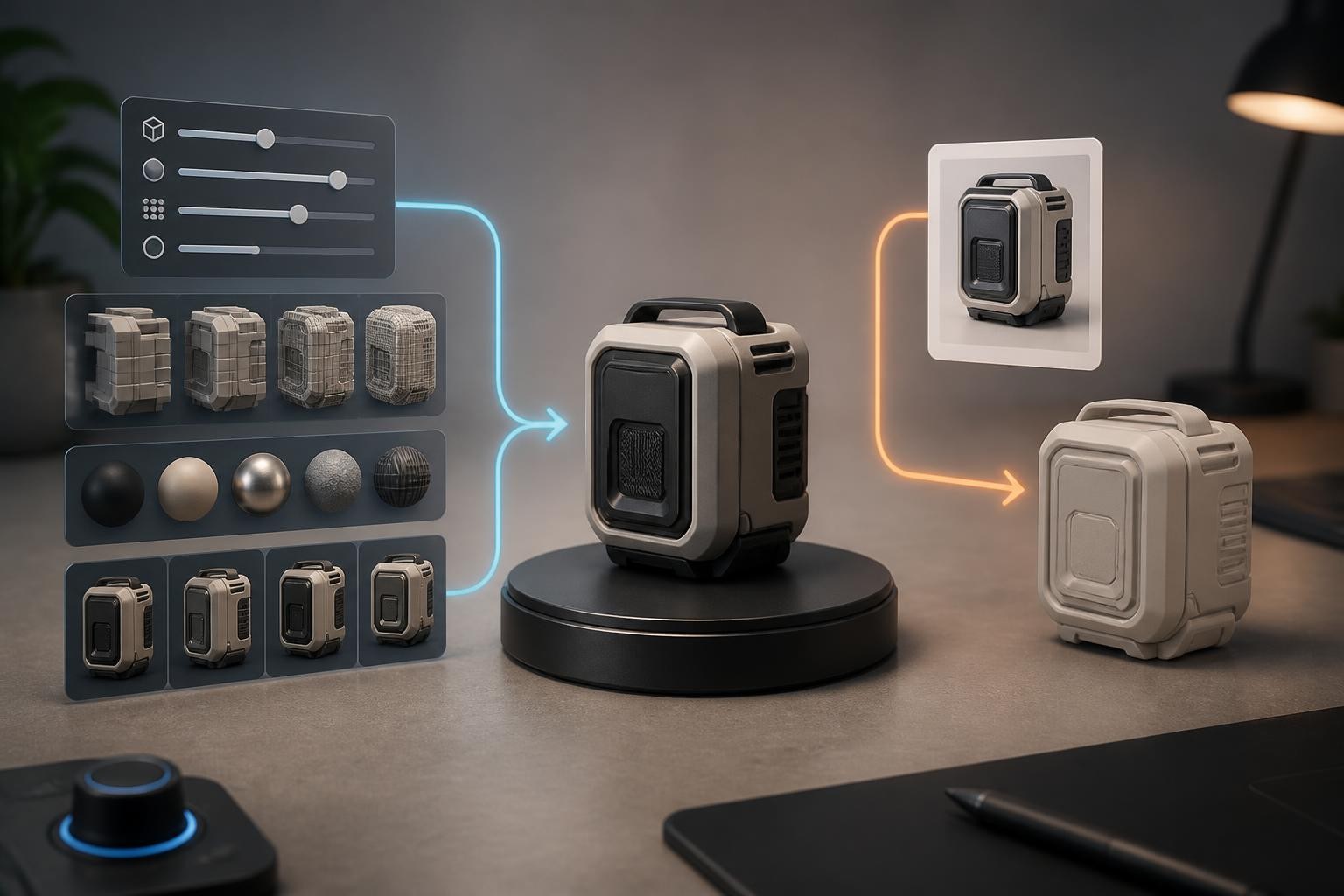
rodin gen-2.5 is an AI model for generating 3D models from text, single images, and multi-image references. It is part of the Hyper3D Rodin ecosystem and is commonly positioned for creators who need browser-based 3D asset generation without manually modeling from a blank scene.
The model's practical role is to shorten the path from idea to usable 3D draft. Instead of sculpting, retopologizing, UV unwrapping, and texturing an object from scratch, you can start with a prompt or reference image, generate a model, inspect it in 3D, and export it for downstream use.
That does not mean rodin gen-2.5 replaces skilled 3D artists. A generated asset may still need cleanup, retopology, rigging, scale correction, UV checks, material adjustment, or optimization before it is ready for a game, animation, ecommerce viewer, or print workflow. The real value is speed and direction: it gives you a more complete first asset to evaluate.
The main rodin gen-2.5 features
Five quality tiers for speed and detail
One of the most useful rodin 2.5 changes is the quality tier system. The model gives creators a way to choose between fast drafts and higher-detail outputs instead of forcing every job through the same generation budget.
This is important because not every 3D task needs maximum detail. A concept artist exploring ten prop ideas may want fast low-stakes drafts. A product team preparing one hero object for review may prefer a slower, denser result. A 3D printing workflow may care about form readability before texture fidelity. A game workflow may care about whether the shape is good enough to rebuild as an optimized asset.
The practical advice is simple:
- Use lower tiers when you need fast shape exploration.
- Use middle tiers when you want a balanced preview with enough detail to judge the concept.
- Use higher tiers when the asset is worth closer inspection, material work, or downstream cleanup.
The higher the tier, the more important it becomes to inspect the result carefully. More geometry can preserve detail, but it can also create heavier files, slower previews, and more cleanup if the model is not production-ready.
Text-to-3D, image-to-3D, and multi-image inputs
rodin gen-2.5 supports several starting points. Text-to-3D is useful when the object is mostly conceptual. Image-to-3D is stronger when you already have a product photo, concept sketch, character reference, or prop image. Multi-image input can help when one angle is not enough to define the object's shape.
The input choice should match the ambiguity of the object:
- Use text when the idea matters more than exact reference fidelity.
- Use one image when the silhouette, color, and visible surface detail are important.
- Use multiple images when the model must understand front, side, back, or top information.
This is a common failure point in AI 3D generation. A single front-facing image may look clear to a person, but the model still has to infer the hidden back, sides, underside, and depth. If those hidden areas matter, give the model more views or plan for manual cleanup.
Creative geometry mode
Creative geometry mode gives the model more freedom to fill in missing or uncertain shape information. It can be useful when a reference is incomplete, when the object is stylized, or when the goal is a polished visual draft rather than strict reconstruction.
The tradeoff is control. More creative geometry can make a model feel more complete, but it may also add details that were not in the source. That is helpful for concept work and risky for product-faithful work.
Use creative geometry when:
- The brief allows interpretation.
- The source image does not show enough structure.
- You want a more finished-looking draft.
- You are making a fantasy prop, stylized object, creature, or decorative asset.
Avoid it when:
- The output must match a product precisely.
- The silhouette is legally, commercially, or technically important.
- You plan to compare dimensions or design details.
- The source image already contains the information you need preserved.
HD texture enhancement and texture delighting
Textures often decide whether an AI-generated 3D model feels usable. rodin gen-2.5 includes texture-focused options such as higher-resolution texture processing and delighting. The purpose is to produce cleaner surface maps that work better under new lighting instead of carrying baked shadows, highlights, or color casts from the reference.
This matters for real 3D workflows because a model is rarely viewed under only one lighting setup. A product asset may move from a generator preview into a web viewer. A game prop may be placed under dynamic lighting. A print model may need geometry more than texture. A portfolio render may need material cleanup before it looks intentional.
When evaluating rodin gen-2.5 texture output, do not only look at the first render. Rotate the model, change the lighting if possible, inspect the albedo-like surface, and check whether important details are represented as real geometry, texture, or accidental shadow.
Symmetry and micro-detail controls
Symmetry control is valuable for characters, vehicles, tools, furniture, architecture, and many manufactured objects. If the object should be symmetrical, forcing symmetry can reduce obvious AI artifacts and make the generated result easier to clean up.
Micro-detail controls are useful for dense surface information such as fabric, skin, engraving, panels, ridges, or ornamental texture. The caution is that micro detail can look impressive in previews while still being difficult to use in production. Extra detail is not automatically better if the mesh becomes too heavy or noisy.
For production-minded work, ask:
- Does the detail support the asset's purpose?
- Is it geometry, texture, or visual noise?
- Will the file be too heavy for the target platform?
- Would a cleaner base mesh plus baked normal detail be better?
Part-level control and refinement
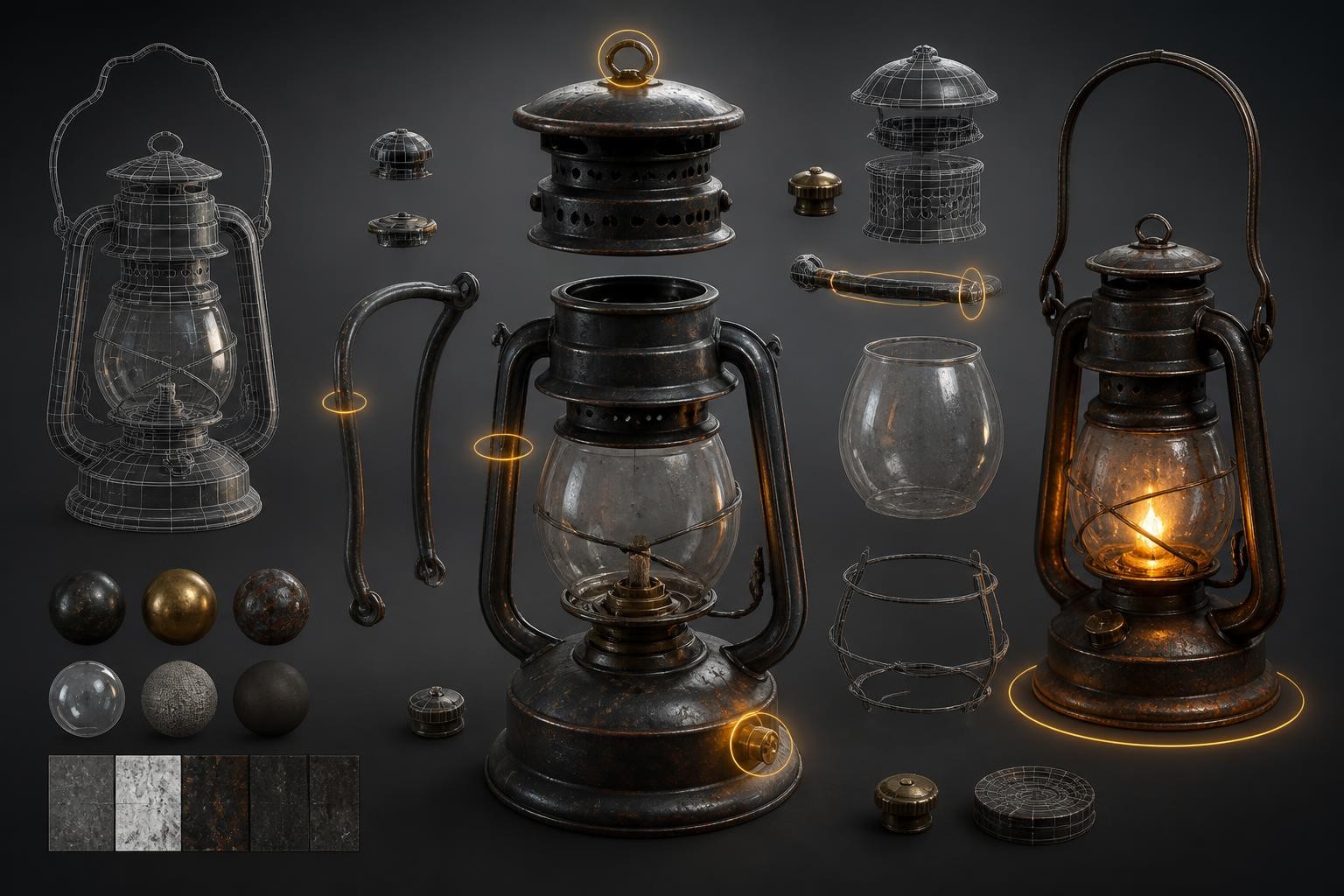
Another important direction for rodin gen-2.5 is more controllable part handling. Part separation and local refinement matter because most 3D assets are not one smooth object. A backpack has straps, buckles, panels, pockets, fabric seams, and hard-surface attachments. A character has hair, face, clothes, hands, shoes, accessories, and props. A product may have buttons, transparent parts, handles, and material boundaries.
When a model treats all of that as one fused surface, cleanup gets harder. Part-level control helps creators isolate sections, refine local areas, and avoid regenerating the entire model when only one piece needs attention.
This is where rodin gen-2.5 starts to feel less like a one-click novelty and more like a practical AI 3D workflow. The question shifts from "Can it generate a model?" to "Can I steer the parts that matter?"
What rodin gen-2.5 is best for
rodin gen-2.5 is strongest when you need a fuller AI 3D generation workflow rather than only a quick conversion. It is especially useful for projects where you care about the balance between generation speed, output detail, texture handling, and export flexibility.
Good-fit use cases include:
- Game prop ideation from prompts or concept art
- Character, creature, and collectible drafts
- Product-to-3D exploration for ecommerce or internal review
- 3D printing concepts where form matters early
- XR, spatial design, and interactive mockups
- Multi-view reconstruction attempts from several references
- Higher-detail assets that will be manually cleaned up later
The best rodin ai 3d workflow is not to generate once and accept the first model. A more reliable process is:
- Start with a low or middle quality tier to test the idea.
- Check the silhouette, proportions, and major parts.
- Improve the input prompt or reference set.
- Regenerate at a higher tier only when the direction is worth it.
- Inspect topology, material maps, scale, and hidden surfaces.
- Export the asset and clean it in your 3D software if needed.
That process saves credits, time, and cleanup effort because it separates concept validation from final-detail generation.
Where rodin gen-2.5 may be too much
rodin gen-2.5 is powerful, but not every creator needs that much control. If your task is simply "turn this product photo into a GLB draft" or "make this concept image inspectable in 3D," a heavier control surface can slow you down.
It may be more than you need when:
- You have one clean image and only need a fast model preview.
- You do not need text-to-3D or multi-image prompting.
- You prefer a simple browser upload and download workflow.
- Your next step is concept review, not production handoff.
- You are making several rough 3D drafts and want less setup.
It may also be the wrong fit when strict reconstruction matters. AI 3D models infer hidden geometry. If an object's exact dimensions, mechanical function, or legal product identity matters, generated output should be treated as a visual draft, not a verified CAD replacement.
Pixal3D AI as a rodin gen-2.5 alternative
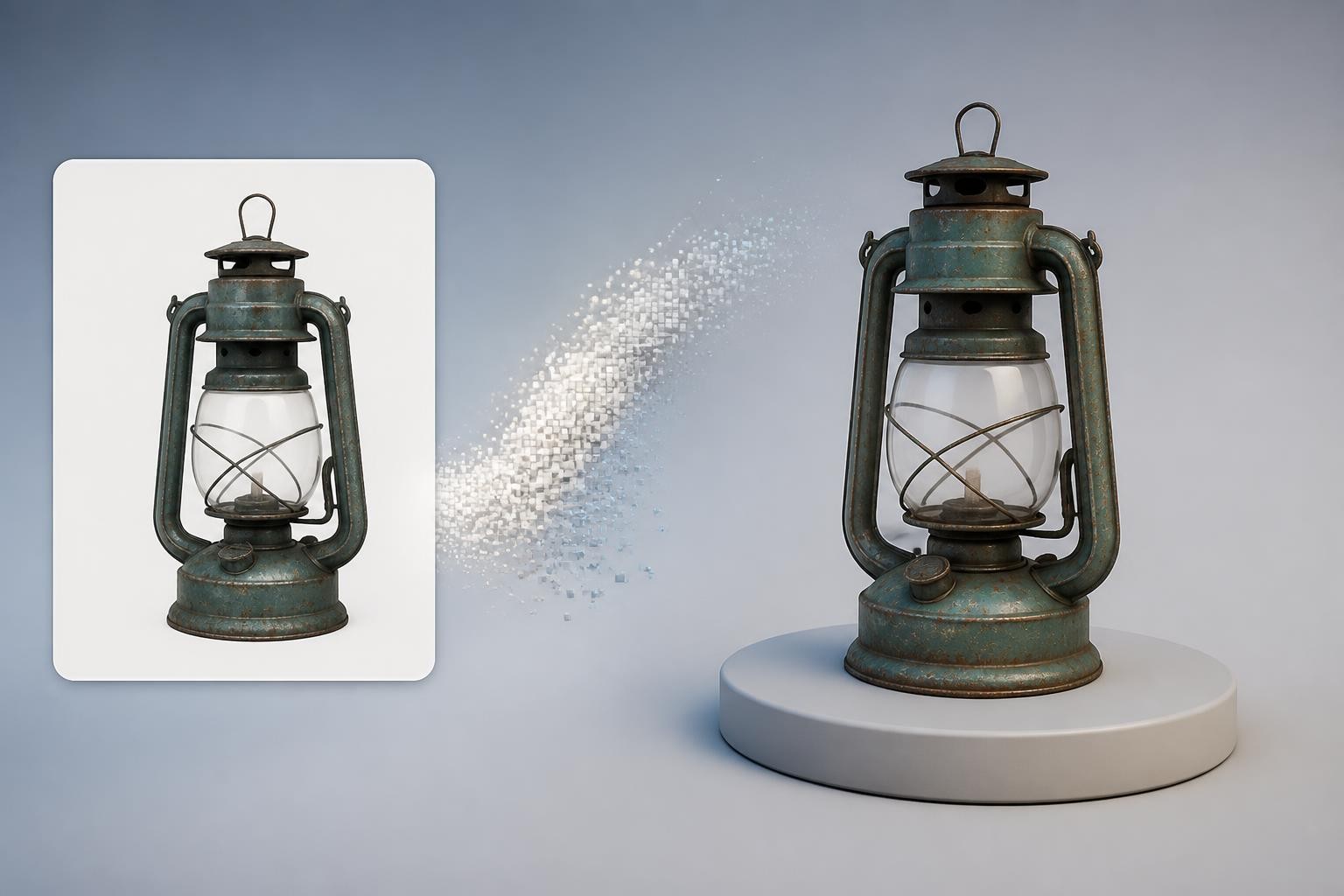
Pixal3D AI is a practical alternative when the job starts from one image and the goal is a downloadable 3D model draft. Instead of asking the user to manage a broad generation workflow, Pixal3D focuses on a reference-first path: upload an image, let the model infer shape and texture, then download a GLB asset.
The key idea behind Pixal3D is pixel-aligned image-to-3D generation. In plain English, the model is designed to preserve a closer relationship between visible pixels in the source image and the resulting 3D structure. That makes it especially relevant when the source image is not just inspiration but the main anchor for the model.
This does not make Pixal3D AI universally better than rodin gen-2.5. It makes it better for a narrower job: fast, image-driven 3D drafts with a clear source object.
Choose Pixal3D AI when:
- You have a single product, prop, character, collectible, or object image.
- The source image has a clean silhouette and visible edges.
- You want a GLB file without setting up local model weights or GPU tools.
- You need a quick 3D base for review, prototyping, or presentation.
- You care more about reference fidelity than open-ended text-to-3D exploration.
Choose rodin gen-2.5 when:
- You need text-to-3D as well as image-to-3D.
- You want more control over quality tiers and generation style.
- You need part-level refinement or more advanced asset preparation.
- You are working from multiple references.
- You expect to iterate inside a broader 3D production workflow.
rodin gen-2.5 vs Pixal3D AI: how to choose
If the brief starts with an idea, use rodin gen-2.5
If your prompt begins as a written concept, rodin gen-2.5 has the advantage. A phrase like "a compact sci-fi survival backpack with hard-surface panels, fabric straps, modular canisters, and worn field materials" needs a model that can invent coherent geometry from language.
Pixal3D AI can be useful after you have a reference image, but it is not the most direct first step when there is no image anchor.
If the brief starts with a photo, use Pixal3D AI
If the input is already visual, Pixal3D AI is often the more direct route. A clean object photo gives the model concrete shape, color, and texture cues. That makes the workflow easier for product mockups, props, collectibles, simple characters, furniture, decor, and concept objects.
The better the source image, the better the starting point. Use images with:
- One clear subject
- Good lighting
- Minimal occlusion
- Visible object boundaries
- A three-quarter angle when possible
- No distracting background detail
If the asset must be production-ready, plan for cleanup
Both tools can save time, but neither should be treated as a guaranteed final production asset. A model can look good in a preview and still need manual work.
Check these areas before using any AI-generated 3D asset in a serious pipeline:
- Mesh density and file size
- Surface noise and unwanted lumps
- UV layout quality
- Material map cleanliness
- Hidden back-side geometry
- Scale and orientation
- Rigging suitability for characters
- Polygon budget for real-time engines
- Watertightness for 3D printing
The practical choice is not "Which tool is best?" It is "Which tool creates the least cleanup for this specific job?"
A practical workflow for rodin gen-2.5
Use rodin gen-2.5 like a staged asset generator, not like a magic final-export button.
Start with a tight object brief. Name the subject, style, material, key parts, and intended use. For example:
"A stylized handheld sci-fi scanner for a mobile game prop, rounded rectangular body, rubber grip, small glass sensor lens, layered plastic panels, clean silhouette, practical hard-surface design."
Then choose the input strategy:
- Text only for early invention.
- One image for a reference-led model.
- Multiple images when hidden geometry matters.
Generate at a lower or middle tier first. Look for big structural issues before spending more time on a higher-detail version. If the shape is wrong, higher quality will not fix the underlying concept. It will only make the wrong model more detailed.
Once the shape is promising, regenerate with the settings that fit the final purpose. For a game prop, keep an eye on density and cleanup. For a 3D print, check form, wall-like structures, and watertightness. For ecommerce, inspect materials and whether the object still resembles the real product.
A practical workflow for Pixal3D AI
Use Pixal3D AI when your best input is already an image. The image does most of the briefing work, so the preparation step matters.
Before uploading, choose or create a source image with:
- A single centered object
- Clear front and side information
- Simple background
- No heavy motion blur
- Good contrast between object and background
- No important details hidden behind hands, props, shadows, or reflections
After generation, do not judge the model from one angle. Rotate it. Check the silhouette from the side and back. Look at whether texture detail is aligned with the surface. Confirm that the downloaded GLB behaves as expected in your viewer or 3D software.
If the result is close but not ready, treat it as a base. You can refine geometry, decimate the mesh, adjust materials, rebuild UVs, or use it as a spatial reference for a cleaner manually modeled asset.
Common mistakes to avoid
Expecting exact reconstruction from one image
AI image-to-3D generation has to infer hidden areas. A perfect-looking front image can still produce uncertain side and back geometry. Use multi-view references when accuracy matters, or keep the result in the concept-draft category.
Choosing the highest detail too early
High-detail generation is useful only after the main structure works. If the proportions, silhouette, or part separation are wrong, extra detail makes the asset heavier without making it more useful.
Ignoring topology and file size
A generated model can be visually impressive and still unsuitable for a game engine, web viewer, animation rig, or mobile experience. Always check mesh density, material maps, and export behavior before calling the result finished.
Using the wrong tool for the input
rodin gen-2.5 is a stronger choice for broader control and mixed input workflows. Pixal3D AI is often better when you have one clear image and want a fast GLB draft. The fastest workflow is usually the one that matches the input you already have.
FAQ
Is rodin gen-2.5 the same as Rodin 2.5?
Yes. People use rodin gen-2.5, rodin gen 2.5, and rodin 2.5 to refer to the same generation of Hyper3D Rodin model.
Is rodin gen-2.5 good for beginners?
It can be, especially for creators who want browser-based AI 3D generation. Beginners should start with simple objects, lower quality tiers, and clear references before trying complex characters or production assets.
Is Pixal3D AI better than rodin gen-2.5?
Pixal3D AI is better for a specific job: turning one clear image into a downloadable GLB draft with minimal setup. rodin gen-2.5 is better when you need broader control, text-to-3D, multi-image inputs, quality tiers, and more advanced refinement options.
Can rodin gen-2.5 create production-ready models?
It can create useful high-detail assets and strong starting points, but production-ready depends on the target pipeline. Games, animation, ecommerce, 3D printing, and XR all have different requirements. Always inspect topology, scale, materials, hidden geometry, and file weight.
What is the best alternative to rodin gen-2.5 for image-to-3D?
For creators who mainly need a simple image-to-3D workflow, Pixal3D AI is a strong alternative because it starts from one image and outputs a GLB model. It is especially useful for product mockups, props, collectibles, and early concept review.
Try the simpler image-to-3D path
If rodin gen-2.5 feels more advanced than your current task requires, start with a reference-first workflow instead. Upload one clear image, generate a GLB draft, rotate the result, and decide whether it is ready for cleanup or further modeling. Use this rodin gen-2.5 comparison as your next step when you want a simpler Pixal3D AI alternative for fast image-to-3D exploration.
